Try numbering photographs or adjusting an image. You can also transcribe an inscription, write a note about a detail, or prepare a figure caption. These examples run in your browser. They don’t change any files, and your entries are cleared when you reload the page.
Select the photographs, choose a prefix and starting number, then select Renumber selected. Unselected photographs keep their labels.
Six sample photographs, ready to number.
Images: The Walters Art Museum, W.106, folios 1r–3v, Bible pictures by William de Brailes. CC0. Camera filenames are invented for this sample; changing its numbering does not change the source foliation or any files.
Adjust a photograph
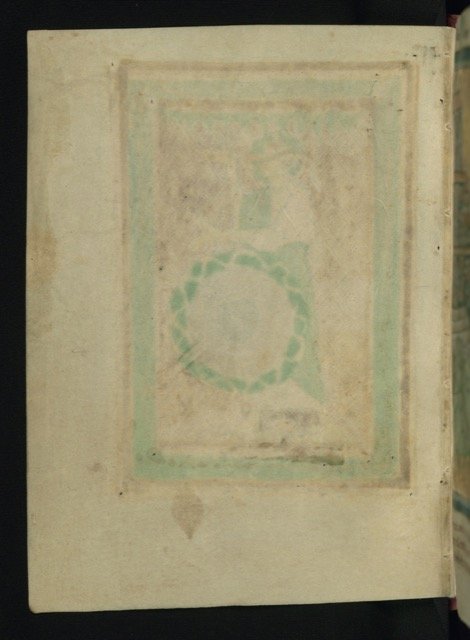
Compare a faint image visible through the reverse of a leaf, or examine the writing beneath an illustration. Change the brightness, contrast, or colour channel and compare the result with the original.
Loading the sample photograph…
Original
The photograph as supplied by the museum.
Adjusted
Full colour · Brightness 100% · Contrast 100%
The Walters Art Museum, W.106, fols. 1v and 2r. Images: CC0. A single colour channel is shown in greyscale. These browser controls change the displayed pixels; they don’t alter the image file. Strong adjustments can hide detail as well as make it easier to see. They do not recover information absent from the photograph.
Transcribe a passage
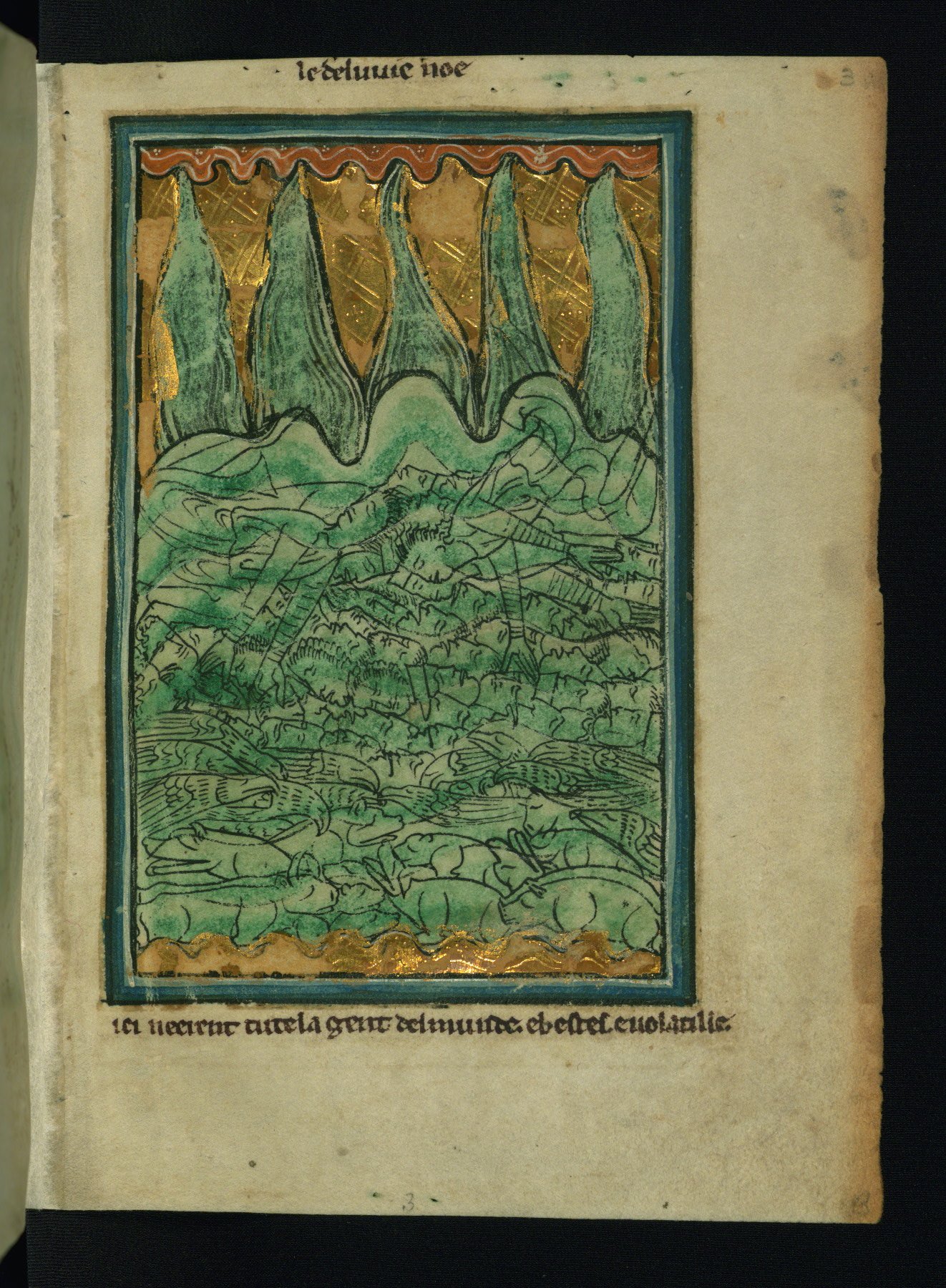
Read the inscriptions above and below this flood scene. Choose one to see the writing more closely, then edit the transcription or add a note. Each inscription keeps its own text and notes while you try the example.
The Walters Art Museum, W.106, fol. 3r. Image: CC0.
Inscription below the illustration
The starting text follows the Walters catalogue’s reading and word spacing. It is supplied for this example; the demo does not recognise handwriting.
Source: The Digital Walters, W.106 manuscript description, fol. 3r. The two areas are preset for this browser example. Your edits stay on this page until you reload it; download them if you want to keep them. The photograph is unchanged.
Annotate a detail
Select a detail in the photograph, then give it a label and a note. This example uses two preset areas; in the desktop app, you draw your own selections.
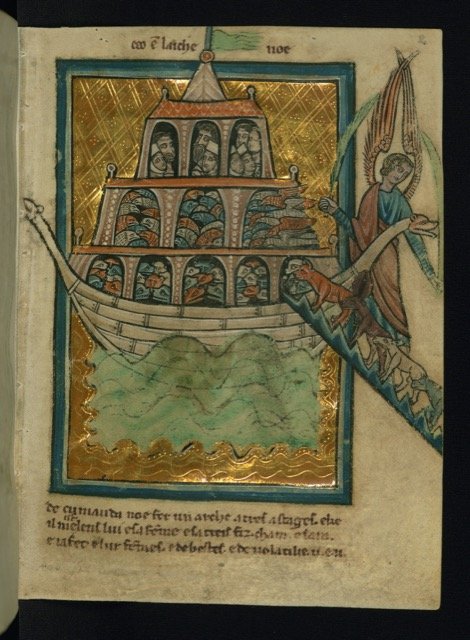
W.106, fol. 2r. The Walters Art Museum. CC0.
Switch between the areas to see their separate notes. The outlines and notes don’t alter the photograph.
Read a provenance timeline
Select an entry to see what the catalogue records and how closely it dates the event.
W.106, Bible pictures by William de Brailes. These selected records leave gaps in its history. Entries are evenly spaced for reading, not scaled by elapsed time.
Henry Walters purchases W.106
Date
1906. The catalogue gives a year, without a day or month.
Place
Baltimore, as listed for Henry Walters.
What the source records
Henry Walters bought the manuscript from Léon Gruel. The catalogue cites an invoice filed under Gruel in the museum archives.
What this example establishes
This entry follows the catalogue. The invoice itself has not been examined for this demo.
The catalogue also associates W.106 with Edith Corf through an inscription in Stockholm, National Museum Ms. B.2010. Its proposed relationship with that manuscript needs explanation beyond a single ownership entry, so it is not plotted here. This timeline does not establish a continuous chain of ownership or a travel route.
Prepare a figure caption
Edit the caption and source details to see how they read beneath a photograph. This is a caption layout example, not an automatic citation or permission check.
The fields above contain example source details for this photograph. Editing them doesn’t change its attribution or reproduction terms. In the desktop app, captions and credits can be drawn from your research records when you prepare figures and slides.
View sample slides
Show a whole page, enlarge the writing, or put two photographs beside each other. Step through this short presentation to see each layout with its caption and image credit.
Slide 1 of 3: Noah’s ark
Noah’s ark
The animals enter the ark.
The ark has three levels. Noah and his family appear above the birds and animals.
The inscription beneath the picture describes the passengers.
The Walters Art Museum, W.106, fol. 2r. Bible pictures by William de Brailes. Image: CC0. Catalogue.
Read the inscription
The full page, fol. 3r.
Detail: inscription below the illustration.
ici neerent tute la gent del munde e bestes e volatilie.
Reading and word spacing follow the Walters catalogue.
Fol. 2r: animals enter the ark.Fol. 3r: the flood.
The Walters Art Museum, W.106, fols. 2r and 3r. Images: CC0. Photographs fitted to the slide, not shown at physical scale. Catalogue.
Speaker notes for this slide
Point out the three levels of the ark, then turn to the inscription below the illustration. The full page lets the audience see where the writing sits.
This is a browser presentation example. In the desktop app, you can prepare PowerPoint slides with your photographs, captions, citations, and image credits. Your original photographs stay in their existing folders.
Try it with your own photographs
The desktop app works with files in your existing folders. You choose their order and labels, record your notes, and review proposed filename changes before applying them.
The ark has three levels. Noah and his family appear above the birds and animals.
The inscription beneath the picture describes the passengers.